
This tutorial will explain how to create a photo slideshow using 4K Slidehow Maker.
There are lots of applications out there that can do this but I’ve found most of them are too complicated and often leave you with black bars around the edges of your photos which just looks rubbish. “4K Slideshow Maker” is free and can be run on Windows, Mac and Ubuntu Linux.
To get started head over to https://www.4kdownload.com/ and click “Download”. Find the appropriate file for your system, download it and install.
Once installed run the application.
Add Photos to your Photo Slideshow
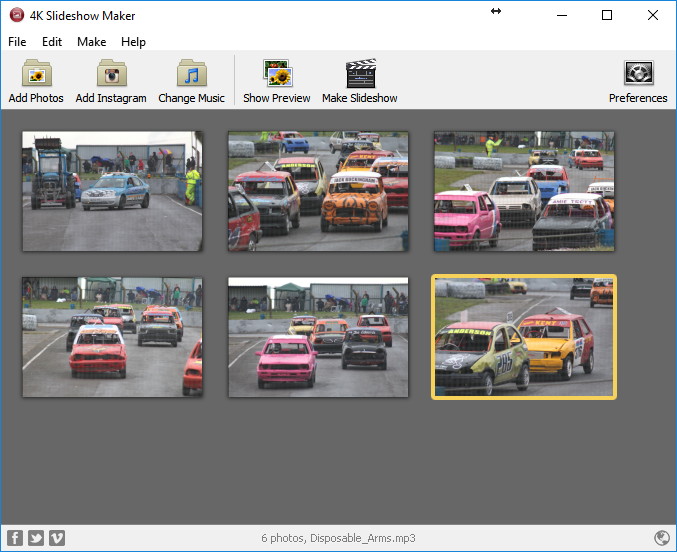
The interface is fairly basic and the first step is adding photos. You can either click the “Add Photos” button or drag-n-drop them into the main area.
Add Music
If you plan to upload your slideshow to YouTube you need to be careful about using commercial music. I tend to grab something from the YouTube Audio Library as it is free and guaranteed not cause you any problems.

The songs are free and you won’t risk getting a copyright strike or having the audio track muted when you upload. You can sort by genre or duration.
Once you have an MP3 file click the “Change Music” button. Browse to the music file and click “Open”. Nothing exciting will change in the interface but when you preview or export your slideshow the music will be included.
Set Preferences
So now we’ve got the content loaded we need to set some preferences. Click “Edit” then “Preferences”.
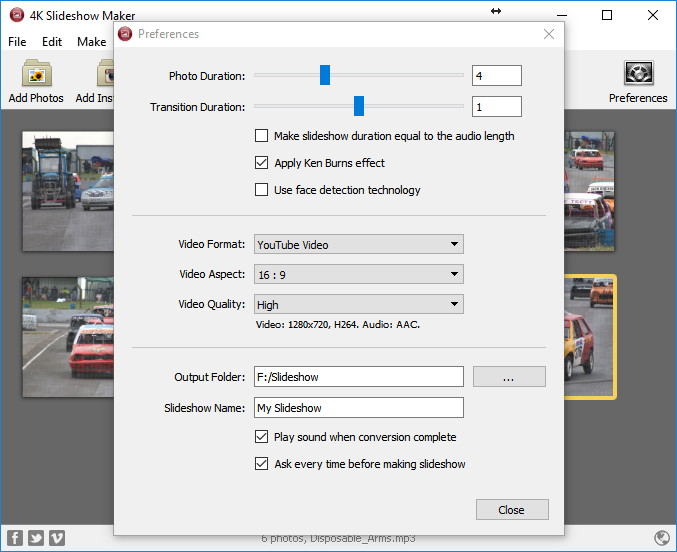
The photo duration setting determines how many seconds each photo is visible. I’d recommend starting with 4 seconds.
The transition setting can be left at the default of 1.
At this point you can work out how long your slideshow will be. It’s simply the photo duration multiplied by the number of photos you’ve added. With 10 photos and a duration of 4 seconds your slideshow would be 40 seconds. If the music is longer than this it will get cut off.
The next setting it worth thinking about. I tend to work out how long my slideshow will be and then find some music to match. Then I tick the “Make slideshow duration equal to the audio length”. This adjusts the photo duration to fit and gives a great result if you can find some music of the correct length.
The “Ken Burns” effect adds panning and zooming to the photos and makes the slideshow much more interesting. I recommend you leave this turned on.
The 3 video settings allow you to adjust the resolution, aspect ratio and quality of the slide show. If you are familiar with the settings then make your choice. If you aren’t quite sure select :
- YouTube Video
- 16:9
- High
This will give you a decent output which can either be uploaded or played on your PC. If one of the presets looks more appropriate then feel free to use one.
The output folder should be set to the location where you want the final video file to be saved. The “Slideshow Name” will be used as the filename.
Click “close” to return to the main interface.
Tweak Photos
There are some actions you can perform on photos :
- You can re-position photos by dragging with the mouse.
- Photos can be removed by clicking the cross in the top right hand corner.
- Photos can be rotated using the options in the little drop-down menu.
Preview Video and Music
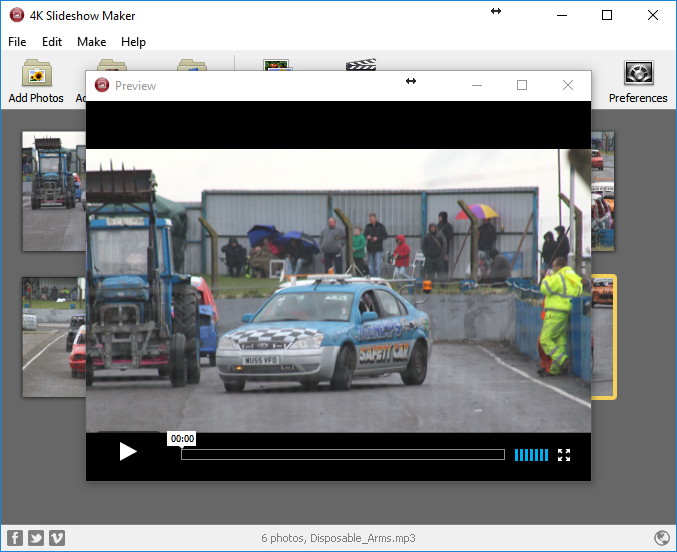
The “Show preview” can be used to see how your slideshow will look and sound.
Export Your Photo Slideshow
When you are ready to output click “Make Slideshow”. You get the chance to change the output format, the output location and the filename.
For a quick test I would tend use the YouTube preset with quality set to low. If the result looks good you can re-do this step and change to a higher resolution and quality setting.
Click “Continue”.
The photos will be processed and when complete you can either play the result or be shown the file in its folder.
If you need to tweak your slideshow you can make changes and re-create the video until you are happy.
Summary
I’ve used 4K Slideshow Maker to make a number of slideshows. I like its simplicity and the ability to export a 4K resolution video. YouTube is happy to accept these outputs and if your photos are 6 megapixels and higher you might as well use as many pixels as possible. The settings are limited but this means you can create decent results with the minimum of fuss. Give it a try!
Photo Slideshow Video Tutorial
If you prefer video tutorials this article is also available to watch (with subtitles) :
Example Photo Slideshows Created with 4K Slideshow Maker
Finally here are some example photo slideshows that I have created with 4K Slideshow Maker.
Thunderbolt XVII Mendips Raceway April 2017 by Matt Hawkins
Raspberry Pi 5th Birthday Party in Cambridge by RPiSpy
Drone Racing – MAAXX Robot Air Race at UWE by RPiSpy