
Close Menu
    Facebook X (Twitter) Instagram
    Trending
    • SharePoint Internal Column Name Encoded Character List
    • Satchel Pelts List for Red Dead Redemption 2
    • Create a Video Wall With FFmpeg
    • Mitsubishi Outlander Towbar Electrics
    • Mitsubishi Outlander Towbar Installation
    • Telephone Block List
    • Hard Drive Repair After Wrong Voltage Mishap
    • How To Send Excel Workbook As Email Using Button
    YouTube Instagram Facebook RSS
    Technology Spy
    • Tutorials & Help
    • Reviews
    Technology Spy
    You are at:Home»Linux»How to add Show Desktop Icon to Ubuntu Dock
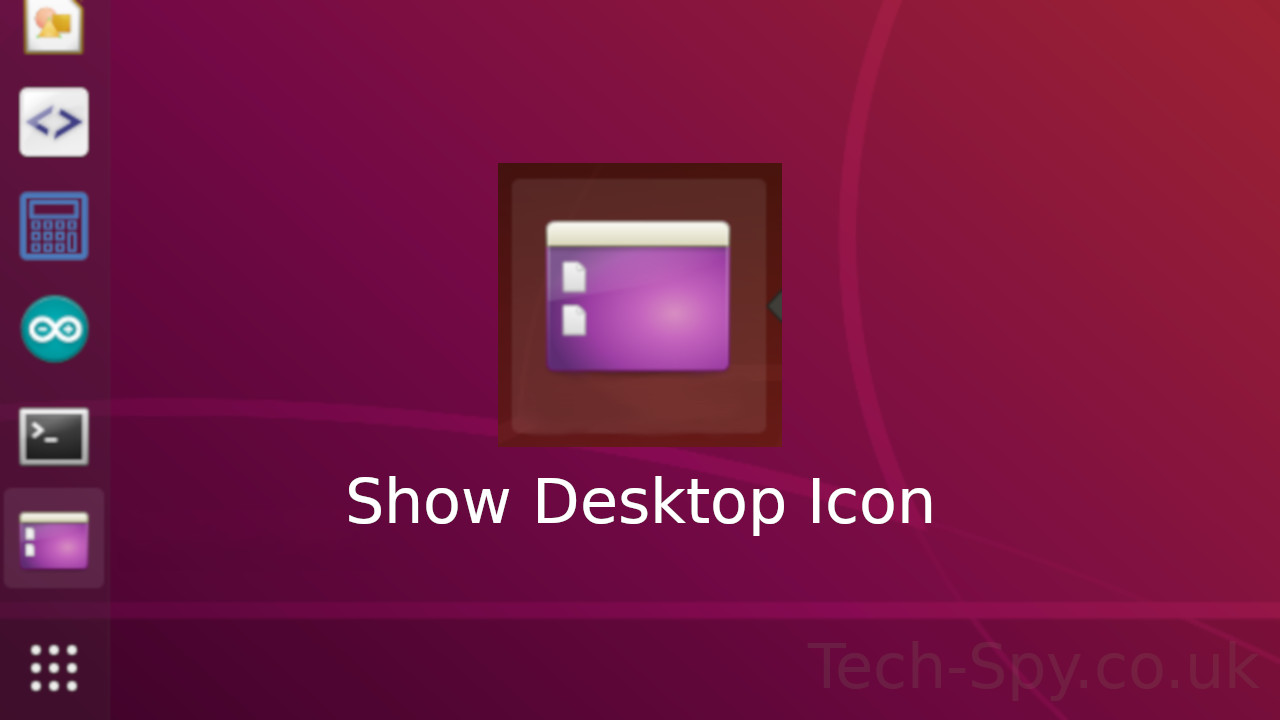
    Ubuntu Dock Show Desktop Icon

    How to add Show Desktop Icon to Ubuntu Dock

    0
    By Matt on September 5, 2018 Linux, Tutorials & Help

    Having upgraded from Ubuntu 16.04 to Ubuntu 18.04 the first thing I noticed was that there was no show desktop icon on the Ubuntu Dock. I couldn’t find a way to turn this back on in the settings so instead I used a script provided by “AndAC” in this AskUbuntu post.

    The following guide will explain how to add a show desktop icon to your Ubuntu Dock and quickly hide/show your active windows.

    Install wmctrl

    In order to hide the active windows you need to install wmctrl using :

    sudo apt install wmctrl

    Create show-desktop Script

    Now create a folder to contain the script that will do the work.

    mkdir ~/.local/bin

    Then we use the nano text editor to create the script. You can use another text editor if you prefer :

    sudo nano ~/.local/bin/show-desktop

    Enter your admin password if prompted to.

    When the text editor opens paste in the following script :

    #!/bin/bash
    status="$(wmctrl -m | grep "showing the desktop" | sed -r 's/(.*)(ON|OFF)/\2/g')"
    
    if [ $status == "ON" ]; then
    wmctrl -k off
    else
    wmctrl -k on
    fi

    This script will hide the active windows and restore them when run again. Windows that were previously minimised will be ignored.

    Change Permissions

    Now make the script file executable by changing the permissions :

    sudo chmod +x ~/.local/bin/show-desktop

    Create a Show Desktop desktop file

    The last file to create is a desktop icon file :

    nano ~/.local/share/applications/show-desktop.desktop

    When the editor loads paste in the following details :

    [Desktop Entry]
    Type=Application
    Name=Show Desktop
    Icon=desktop
    Exec=/home/USERNAME/.local/bin/show-desktop

    This defines an icon and specifies the script that will be run when it is clicked.

    NOTE: You MUST replace USERNAME in the script above with YOUR username.

    Add Show Desktop Icon To Ubuntu Dock/Launcher

    Finally click your “Show Applications” button and type “show desk” into the search box. You should see the desktop icon as shown below.

    Right click on the icon and select “Add to Favourites”.
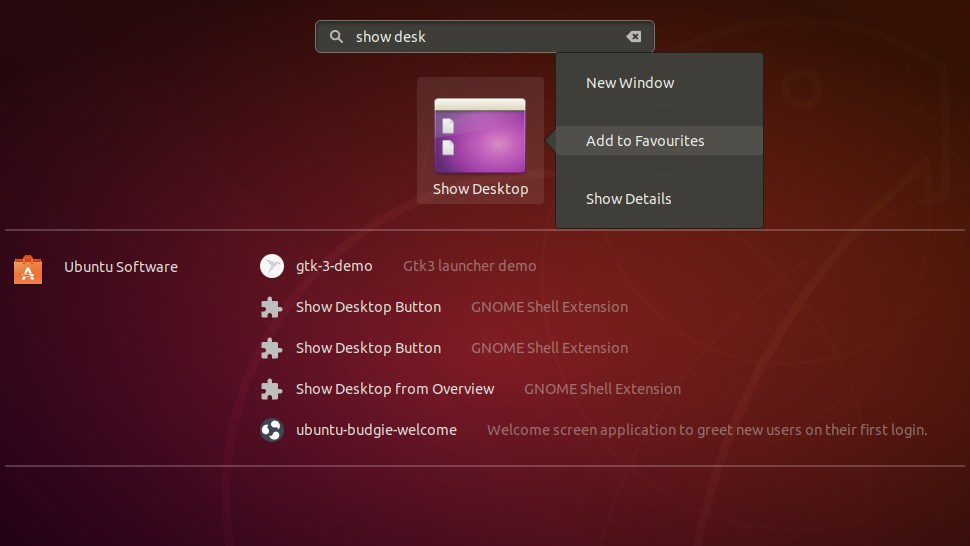
    Ubuntu Show Desktop Icon

    The icon should be added to your dock. Re-positioned it as required.

    Clicking the Show Desktop icon should hide all active windows. Clicking it again should restore those windows.

    Share. Facebook Twitter Pinterest LinkedIn Tumblr Email
    Previous ArticleRasPiO Night Light – A Motion Sensitive Arduino Based Kickstarter
    Next Article Oracle APEX Built-in Substitution Strings

    Related Posts

    Create a Video Wall With FFmpeg

    Mitsubishi Outlander Towbar Electrics

    Mitsubishi Outlander Towbar Installation

    Leave A Reply Cancel Reply

    This site uses Akismet to reduce spam. Learn how your comment data is processed.

    109

    Recent Posts
    May 1, 2025

    SharePoint Internal Column Name Encoded Character List

    March 24, 2025

    Satchel Pelts List for Red Dead Redemption 2

    January 29, 2025

    Create a Video Wall With FFmpeg

    Categories
    • 3D Printing
    • Android
    • Arduino
    • Development
    • ESP8266
    • Excel
    • Gaming
    • General
    • GIMP
    • Home Automation
    • JavaScript
    • Linux
    • Microsoft Office
    • Mobile Devices
    • Oracle APEX
    • Python
    • Raspberry Pi
    • Reviews
    • Security
    • SharePoint
    • Tutorials & Help
    • VBScript
    Web Tools

    A set of quick and basic online tools for web designers and software developers :

    • Hash Generator
    • Text to HTML List
    • Text to HTML Table
    • URL Encoder and Decoder
    • UNIX Timestamp Calculator
    • LED Resistor Calculator
    • Extract Email from Text
    • Mortgage Calculator
    Tags
    Android APEX Apple Arduino Black Friday Coolermaster csv Elite Dangerous email ESP-01 ESP8266 EV Excel file handling Format gaming GIMP Gritin Home Assistant Home Automation Linux lists Media os.stat os.walk Outlander Power Python Qi RDR2 Review scam Security SharePoint 2010 string Syncwire text text files TrueCrypt Ubuntu USB-C VBA VBscript Windows 10 Xbox One
    About

    Welcome to Technology Spy, a site devoted to gadgets, computers, programming and all things technology! You’ll also find product reviews for items I own as well as tutorials, guides and scripts for the software I use.

    Archives
    Other Resources
    • MattsBits
    • Raspberry Pi Spy
    YouTube Facebook Instagram Pinterest RSS

    Entries RSS | Comments RSS

    Copyright © 2025 - All Rights Reserved - Matt Hawkins

    mastodon.social@MattHawkins

    Type above and press Enter to search. Press Esc to cancel.