
Close Menu
    Facebook X (Twitter) Instagram
    Trending
    • SharePoint Internal Column Name Encoded Character List
    • Satchel Pelts List for Red Dead Redemption 2
    • Create a Video Wall With FFmpeg
    • Mitsubishi Outlander Towbar Electrics
    • Mitsubishi Outlander Towbar Installation
    • Telephone Block List
    • Hard Drive Repair After Wrong Voltage Mishap
    • How To Send Excel Workbook As Email Using Button
    YouTube Instagram Facebook RSS
    Technology Spy
    • Tutorials & Help
    • Reviews
    Technology Spy
    You are at:Home»Linux»Installing Truecrypt In Ubuntu

    Installing Truecrypt In Ubuntu

    0
    By Matt on September 18, 2015 Linux, Security

    TrueCrypt is an open source encryption application that is widely used to protect data. From home users to journalists it has been the encryption product of choice for years.

    In 2014 the developers mysteriously abandoned the project and recommended users switch to using Microsoft’s Bitlocker. No one really knows what motivated them to do this. Many security researchers have confirmed that TrueCrypt is still a viable solution and it is now one of the few security products to have been independently audited.

    Having just switched to Ubuntu, TrueCrypt was one of the applications I needed to get up and running as soon as possible. So here is the process I used to install TrueCrypt and create desktop shortcuts to easily mount my secure data file.

    Step 1 – Download

    TrueCrypt v7.1a (avoid v7.2) is available from a number of sources but you need to make sure you can trust the source. Visit GRC and if you are using 64-bit download :

    • truecrypt-7.1a-linux-x64.tar.gz

    or if you are using 32-bit :

    • truecrypt-7.1a-linux-x86.tar.gz

    I’ll assume your download folder is under your home directory and named ‘Downloads’.

    Step 2 – Extract & Install

    Open a terminal window and browse to the download folder :

    cd ~/Downloads/

    Extract the archive using :

    tar xzvf truecrypt*.gz

    To install either use :

    ./truecrypt-7.1a-setup-x64

    or :

    ./truecrypt-7.1a-setup-x86

    An xmessage window will launch.

    • Click “Install TrueCrypt”
    • Read terms and conditions then click “I agree”
    • Click “OK”

    A terminal window will open and the installation will proceed. You may be asked to enter your administrator password. When prompted press ENTER to close the window.

    Step 3 – Run TrueCrypt

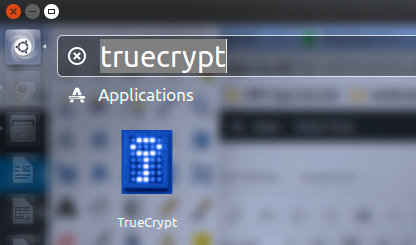
    You should now be able to run TrueCrypt from the Dash :
    TrueCrypt in Ubuntu

    The TrueCrypt interface looks like this :
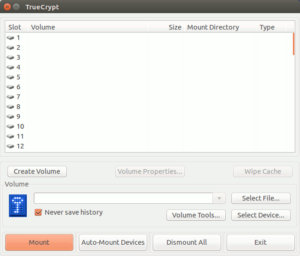
    TrueCrypt Interface

    For additional instructions on using it take a look at the TrueCrypt v7.1a User Guide.

    Step 4 – Create Desktop Shortcuts (optional)

    If you want to quickly mount your encrypted file you can create desktop shortcuts.

    Mount Volume Shortcut

    In a terminal window type :

    gedit ~/Desktop/truecryptmount.desktop

    Then paste this into the file :

    [Desktop Entry]
    Type=Application
    Encoding=UTF-8
    Name=Mount Truecrypt
    Comment=Mount Truecrypt files
    Exec=gnome-terminal -e "bash -c \"truecrypt --mount /home/user/mytcvolume /home/user/Truecrypt; exit; exec bash\""
    Icon=/usr/share/icons/Humanity/actions/48/gnome-lockscreen.svg
    Categories=Application;Accessories
    Name[en_GB]=Truecrypt Mount
    

    The encrypted file is :

    /home/user/mytcvolume

    and it will mounted to :

    /home/user/Truecrypt

    Finally save the file.

    An icon should appear on the desktop and you can drag it to your Launcher if you prefer.

    Dismount All Volumes Shortcut

    A dismount shortcut can be created in a similar way.

    n a terminal window type :

    gedit ~/Desktop/truecryptdismount.desktop

    Then paste this into the file :

    [Desktop Entry]
    Type=Application
    Encoding=UTF-8
    Name=Truecrypt Unmount All
    Comment=Dismount all Truecrypt volumes
    Exec=gnome-terminal -e "bash -c \"truecrypt -d ; exit; exec bash\""
    Icon=/usr/share/icons/Humanity/actions/48/player_eject.svg
    Categories=Application;Accessories;
    

    Save the file.

    You will need to adjust the execute permission on both files using :

    cd ~/Desktop
    chmod +x truecryptdismount.desktop
    chmod +x truecryptmount.desktop


    Share. Facebook Twitter Pinterest LinkedIn Tumblr Email
    Previous ArticleHow Not To Make Your Website Look Like A Phishing Scam
    Next Article Black Friday UK Retailer Links 2015

    Related Posts

    Telephone Block List

    How to Verify Checksum of a File

    Lenovo T460 Trackpad Ubuntu 18.04 Fixes

    Leave A Reply Cancel Reply

    This site uses Akismet to reduce spam. Learn how your comment data is processed.

    109

    Recent Posts
    May 1, 2025

    SharePoint Internal Column Name Encoded Character List

    March 24, 2025

    Satchel Pelts List for Red Dead Redemption 2

    January 29, 2025

    Create a Video Wall With FFmpeg

    Categories
    • 3D Printing
    • Android
    • Arduino
    • Development
    • ESP8266
    • Excel
    • Gaming
    • General
    • GIMP
    • Home Automation
    • JavaScript
    • Linux
    • Microsoft Office
    • Mobile Devices
    • Oracle APEX
    • Python
    • Raspberry Pi
    • Reviews
    • Security
    • SharePoint
    • Tutorials & Help
    • VBScript
    Web Tools

    A set of quick and basic online tools for web designers and software developers :

    • Hash Generator
    • Text to HTML List
    • Text to HTML Table
    • URL Encoder and Decoder
    • UNIX Timestamp Calculator
    • LED Resistor Calculator
    • Extract Email from Text
    • Mortgage Calculator
    Tags
    Android APEX Apple Arduino Black Friday Coolermaster csv Elite Dangerous email ESP-01 ESP8266 EV Excel file handling Format gaming GIMP Gritin Home Assistant Home Automation Linux lists Media os.stat os.walk Outlander Power Python Qi RDR2 Review scam Security SharePoint 2010 string Syncwire text text files TrueCrypt Ubuntu USB-C VBA VBscript Windows 10 Xbox One
    About

    Welcome to Technology Spy, a site devoted to gadgets, computers, programming and all things technology! You’ll also find product reviews for items I own as well as tutorials, guides and scripts for the software I use.

    Archives
    Other Resources
    • MattsBits
    • Raspberry Pi Spy
    YouTube Facebook Instagram Pinterest RSS

    Entries RSS | Comments RSS

    Copyright © 2025 - All Rights Reserved - Matt Hawkins

    mastodon.social@MattHawkins

    Type above and press Enter to search. Press Esc to cancel.