
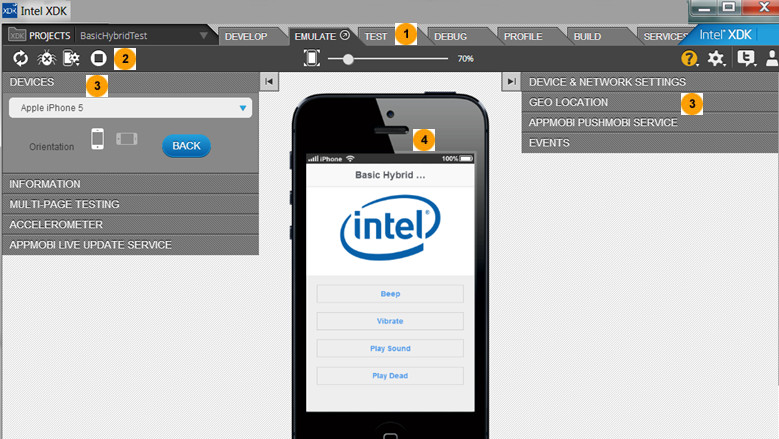
I’ve been experimenting with the Intel XDK Mobile App development system. This allows you to create mobile apps using HTML,CSS and Javascript for Android and iOS. As with any mobile development you need to provide a number of app launcher icons in a variety of resolutions.
The following GIMP Python-fu script allows you to easily create a complete set of icons based on a single source image. These can then be loaded in to the Intel XDK before you build your app.
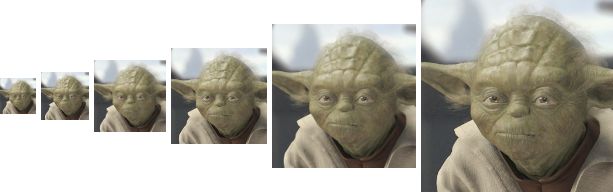
Here is a set of launcher icons created using the script :
For information on adding a custom script to your GIMP Installation then please see my Installing GIMP Plugins and Scripts In Windows tutorial.
Here is the Python script :
#!/usr/bin/env python

# GIMP Plugin - Intel XDK Launcher Icons Generator
# Copyright (c) 2014 Matt Hawkins
# http://www.tech-spy.co.uk/

# This is Python-fu plugin for Gimp.
# It takes the current image and creates Android Launcher icons
# for use within the Intel XDK. You can specify a background
# colour if your source image has transparency.

# The original icon is scaled so you should start with a nice
# high quality original. A good start is a 512x512 or 1024x1024 PNG.

from gimpfu import *

def python_intel_xdk_launcher_icons(image,tdrawable,background_enable,background_color,outputFolder):
  g = gimp.pdb

  g.gimp_message_set_handler( ERROR_CONSOLE )

  # Define list of pixel sizes to create
  sizes = [36,48,72,96,144,192]
  # iOS sizes
  #sizes = [60,76,120,152]
  # Windows 8 sizes
  #sizes = [30,50,150]

  # Set foreground and background colours
  g.gimp_context_set_background(background_color)
  g.gimp_context_set_foreground((255,255,255))

  for size in sizes:
    target_width=size
    target_height=size

    generateImage(g,tdrawable,target_width,target_height,background_enable,outputFolder)

def generateImage(g,tdrawable,target_width,target_height,background_enable,outputFolder):

  imageX = g.gimp_image_new(target_width,target_height,0)

  # Create background layer
  if (background_enable==1):
    back_layer = g.gimp_layer_new(imageX,target_width, target_height, 0, "Background Layer", 100, 0)
    g.gimp_drawable_fill(back_layer, 1)
    g.gimp_image_insert_layer(imageX, back_layer, None, 0)
    g.gimp_layer_set_offsets(back_layer, 1, 1)

  display = g.gimp_display_new(imageX)

  icon_layer = g.gimp_layer_new_from_drawable(tdrawable, imageX)
  g.gimp_image_insert_layer(imageX, icon_layer, None, 0)
  g.gimp_layer_scale(icon_layer, target_width, target_height,False)

  # Merge and save
  temp_layer = g.gimp_image_merge_visible_layers(imageX, 1)
  g.file_png_save(imageX, temp_layer, outputFolder + "\\" + "launcher_" + str(target_width) + "x" + str(target_height) + ".png", "raw_filename", 0, 9, 0, 0, 0, 0, 0)

register(

  "python_intel_xdk_launcher_icons",
  "Intel XDK Launcher Icons Generator",
  "Generate a set of Android launcher icons for use with the Intel XDK.",
  "Matt Hawkins",
  "Matt Hawkins",
  "2014",
  "<Image>/Filters/IntelXDK/_Launcher_Icons",
  "RGB*,GRAY*",
  [
      (PF_TOGGLE, "background_enable", "Background:", True),
      (PF_COLOR,  "background_color", "Background colour", (0, 0, 0)    ),
      (PF_DIRNAME, "outputFolder", "Output directory", "/")
  ],

  [],
  python_intel_xdk_launcher_icons)

main()
This should be named “mh_intel_xdk_launcher_icons.py” and placed in your Plugins directory. It can also be downloaded directly to your PC from my BitBucket Repository.
Once in place you can start GIMP. The plugin will be available from the “Filters” > “TechSpy” menu.
Load an image to use as a starting point and launch the script. You will be prompted for some options :
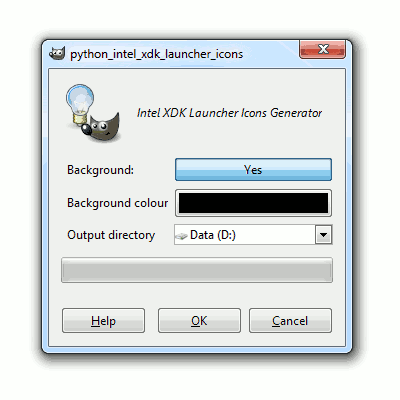
The Background options simply determine if a coloured background layer is used. If you want your icons to maintain transparency you may want to turn this off. The output directory is where the final images will be saved.
Click OK when ready. The script will create and then save a set of images based on the pixel sizes defined in the script using an appropriate file name. For example :
- launcher_36x36.png
- launcher_48x48.png
- …
Although I was using this script to create Android icons you can un-comment the “sizes” list definition for iOS and Windows 8 to create additional sets.
If you need a set of Android launcher icons to load into Intel XDK for testing then feel free to download and use this example set : intel_xdk_android_launcher_icons.zip.